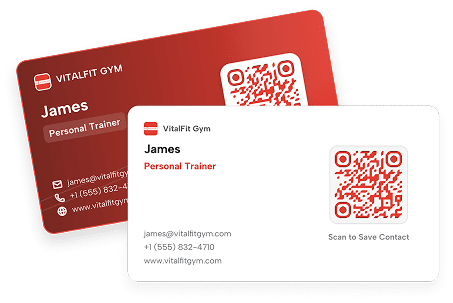
What Type of QR Code Should You Put On Your Business Card?

Quick Answer: A vCard QR code is often the best choice for a business card because it lets people save your contact details instantly. A landing page or URL QR code can be more useful when you want to share a booking page or other type of URL. Other QR code types may also work well depending on your goal. See the table below for more advice.
You can see which type of QR code on your business card works best depending on your goal:
|
Goal |
Best QR Code Type |
Why It Works |
|---|---|---|
| Choose the best all-purpose option | vCard QR Code or Landing Page QR Code | Use a vCard to share contact details instantly, or a landing page to provide several links and contact options in one place. |
| Let clients save your details instantly | vCard QR Code | Clients can save your name, phone number, email address, company, and website with one scan.This reduces the risk of lost or mistyped contact details. |
| Share your best content with one scan | URL QR Code | Send people directly to your website, portfolio, LinkedIn profile, social media page, or online resume. |
| Make booking appointments easier | Landing Page QR Code or Business QR Code | Let potential clients access your booking page, consultation form, or event details directly from your card, reducing back-and-forth communication. |
| Keep your contact details up to date | URL QR Code | Update your website, email address, portfolio, or social media link later without having to print new business cards. |
| Invite contacts to an event | Event QR Code | Send people to event details, RSVP forms, tickets, or registration pages with one scan. |
QRNow also allows you to monitor the amount of scans your code receives. See where and when people are looking at it, and plan campaigns accordingly.

Top Tip: A dynamic QR code lets you update the destination without changing the printed code. If you change jobs, companies, contact details, or portfolios, your existing business cards can stay in use, so there is no need to reprint them.
How To Make QR Codes for Smarter Business Cards With QRNow
To create a QR code for your business card, you simply need to use our QR code generator, and follow these steps:
-
Choose which type of QR code you would like
Start by choosing the type of QR code you want to include on your business card. With QRNow, you can track scans and customize your QR code for a more engaging experience.
-
Fill in your QR code details
Choose what page, URL, or social media profile your QR code will link to, and enter it in our QR code generator.
-
Customize your QR code
Upgrade your QR code’s appearance by adding your brand’s unique colors and logo.
-
Download your QR code
Once you’ve finalized the design, download your QR code in a high-resolution format like PNG, JPEG, or SVG. This keeps it clear and easy to scan.
-
Integrate it into your business cards
Place your QR code in a visible area on your business card with a clear call to action, such as “Scan to connect” or “View my portfolio.” Then, test the code before printing to make sure that it works.
-
Analyze your results
If you choose a dynamic code, you can use built-in analytics to track scans and interactions. See how many people engage with your card and where they scan from. Then, update your networking strategy accordingly.
QRNow data insight: vCard QR codes on your business cards let recipients save your details with one scan. It's a feature that's widely used by our small business users (nearly 64%), followed by freelancers (18%) and medium-sized businesses (12%).
Based on aggregated and anonymized QRNow customer usage data collected in 2025.
See QR Codes Work on Business Cards in Action
Worried that your sector or profession is too niche for business cards? We can tell you that adding a QR code to your business card will benefit you regardless of your sector.
Here are examples of how different professionals can use QR codes on their business cards:
-

Freelancers
If you're a freelance designer, writer, or photographer, your potential clients can view your best work instantly with a URL code or an image QR code.
Instead of carrying physical samples, just link to your website, digital gallery, or case studies.
-

Real estate agents
Trying to sell a house or other type of property?
You can put a code on your card that links to property listings or an RSVP page for house viewing appointments. This makes it hassle-free for clients to explore available properties without searching manually.
-

Consultants
An event QR code allows clients to book a consultation with a simple scan. Instead of exchanging emails, they can schedule a call or meeting directly with your business, thanks to the code on your card.
-

Retail and E-commerce professionals
If you sell products, a coupon QR code attached to your business card can direct customers to exclusive deals or a special landing page with promotions. Doing this encourages them even more to purchase your products.
-

Coaches and personal trainers
Send people to your professional services, appointment page, opening hours, or location details. Make it easier for new clients to take the next step by instantly showing them what you can offer.
-

Teachers, tutors, and trainers
Allow any of your students or their parents to access the right information without searching for you online. You could link to course details, class schedules, resources, or enrollment forms.
Best QR Code Size for a Business Card
For reliable scanning, your QR code should be at least 0.8 × 0.8 inches (2 × 2 cm). Check out the table below to see the size you should use depending on where you plan to place the QR code on the card.
|
QR Code Use Case |
Recommended QR Code Size |
|---|---|
| Minimal card with short URL QR | 0.8 × 0.8 in / 2 × 2 cm minimum |
| vCard QR code | 0.9–1.1 in / 2.3–2.8 cm, near contact details. |
| QR code with logo | 1 × 1 in / 2.5 × 2.5 cm or larger |
| Small vertical card | Test carefully before printing |
You should also always make sure that:
- There’s enough contrast between the code and the background
- You do not place it too close to the card’s edges
How To Place a QR Code on Business Cards
Place your QR code where it’s easy to notice.
The best position depends on your card layout and the action you want people to take. Common placement options include:
- Near your contact details for a vCard QR code
- In the center when scanning is the card’s main goal
- On the back to keep the front clean and uncluttered
- Beside your logo or brand name when the code links to your website
- Near a booking or social media message when it supports a specific action
You should always avoid placing the QR code:
- Too close to the edge of the card
- On top of textured or busy backgrounds
- Across folds or rounded cuts of the card
- On glossy areas with heavy glare
- In a corner so small that users may ignore it
Top Tip: Make sure to include a compelling call to action (CTA) above or under your code, for example, “Book an Appointment Now”. Let your new clients know what they’ll get when they scan the code.
QR Code Business Card Print Specifications
Here’s what to look out for when printing your business card with a QR code, so that anyone can easily scan it.
|
Print Element |
Recommendation |
|---|---|
| QR code format | Use the SVG file format to keep the code sharp when resized. |
| Final file | Export the complete business card as a print-ready PDF. |
| Quiet zone | Leave a clear, empty border around the QR code so phones can identify and scan it correctly. |
| Color mode | Use CMYK if your printer requests it. This color setting is designed for printing and helps the final colors match the digital design more closely. |
| Bleed | Extend background colors or images beyond the card’s cut line. This prevents white edges after trimming. Keep the QR code inside the safe area. |
| Card finish | Matte reduces glare. Test glossy finishes before printing the full batch. |
| Print proof | Scan a printed sample with different phones before approving the order. |
Best Practices for QR Codes on Business Cards
A QR code should make your business card easier to use, not harder to read. Follow these best practices to make sure your code is useful for every new contact.
|
Category |
Best Practice |
How to Implement |
|---|---|---|
| 1. Design of your code | Keep the QR code easy to notice | Place it where it does not compete with your name, logo, or main contact details. |
| Choose a clean background | Avoid placing the QR code over patterns, images, gradients, or textured areas. | |
| Add a short reason to scan | Use direct text like “Save My Details,” “See My Work,” or “Book a Call.” | |
| Keep enough space around it | Leave a clear border so the camera can read the code quickly. | |
| 2. Improving scan experience | Print at a reliable size | Use at least 2 × 2 cm / 0.8 × 0.8 in for standard business cards. |
| Use strong contrast | Place a dark QR code on a light background for easier scanning. | |
| Download the right file format | Use SVG or PDF for print, and PNG for digital use or small designs. | |
| Test the printed version | Scan a sample card before printing the full batch | |
| 3. Destination of your code | Send users to one clear next step | Choose a vCard, portfolio, booking page, social profile, or business page. |
| Keep the linked page mobile-friendly | Make sure the page loads quickly and looks good on a phone. | |
| Use a dynamic QR code for changing details | Update your link later if your website, email, offer, or profile changes. | |
| Match the code to your networking goal | Use a vCard for contact saving, a URL for a portfolio, or a booking page for meetings. | |
| 4. Tracking interactions with your code | Track how your card performs | Use QRNow analytics to see scans by time, location, and device. |
| Compare scans for different situations | Use separate codes for events, sales meetings, or printed campaigns. |
How to make your business card QR code look safe
People are more likely to scan a QR code when they understand where it leads and trust the source. Make the purpose clear and keep the destination secure.
- Add a call to action that explains the destination, such as “View My Portfolio” or “Save My Details”
- Link to a secure, recognizable website that matches your name or brand
- Test the code regularly to confirm it still opens the correct page
FAQs
-
Yes, QR codes can work on outdoor posters. However, when placing a code outside you should be aware that it will probably need to be bigger than an indoor one. People need to be able to comfortably scan it from a distance. You also need to account for glare.
-
Yes, people can scan a poster QR code from a distance if it is large and clear enough. The farther away your audience is, the larger the code should be. There is no single maximum scanning distance, so test it from the distance your potential customers will actually use.
-
Yes, a short backup URL can be useful. It gives viewers another way to reach your content if they cannot scan the code. Place it close to the QR code without crowding the required clear space around the symbol.
-
Yes, you can print the same QR code on several posters if you want them to link to the same destination.
However, if you want to compare performance between locations or designs, use a separate trackable code for each one. This makes it easier to identify which poster placements generate the most scans.
-
Yes, QR codes can work behind glass, but reflections and glare can make them harder to scan.
Try to make the code clearly visible and use strong contrast when customizing it. Test the poster under the lighting conditions where it will be displayed before relying on it.
-
Your QR code may not be getting scans because it’s:
- Too small
- Difficult to notice
- Poorly placed
- Missing a clear reason to scan
First, check that it scans reliably. Then review your CTA and poster location. Think about whether a better CTA or placement could improve your results.
