Help Users Connect to Your Network With a Wi-Fi QR Code
Enable instant internet access for your customers. With a simple scan, a Wi-Fi QR code lets users join your network without typing lengthy passwords.
With these scannable connection codes, you can also:
- Reduce repeated Wi-Fi password requests to staff.
- Speed up check-ins and seating by giving fast, hassle-free Wi-Fi access.
- Improve the guest experience with quick Wi-Fi connectivity.
- Keep access more secure by sharing network details.
Continue reading to discover how to use our Wi-Fi QR code generator to create secure guest access in minutes. Start now with our full-access trial!
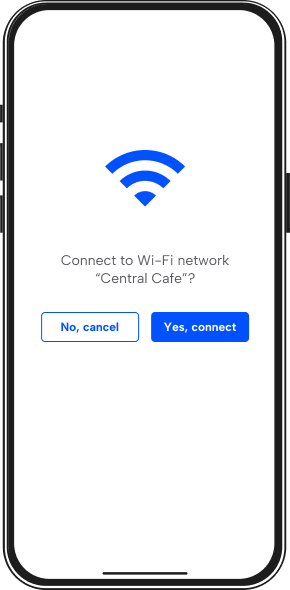
Create a Secure Wi-Fi QR Code With QRNow in 3 Steps
Creating a Wi-Fi QR code is quick and easy with our generator. Follow these simple steps to design your personalized guest connection code:
-
Select your Wi-Fi network details
Choose the network name (SSID) and password you want to encode, to help your clients connect without any trouble.
-
Enter your information and customize
Use our QR code generator to input your Wi-Fi details. Customize the design by selecting colors, adding a logo, and adjusting the layout to reflect your brand’s identity.
-
Download your QR code
Once your design is complete, download your Wi-Fi QR code in a high-resolution format. Display it in convenient locations to provide easy access to your network.
Place Wi-Fi QR Codes in High-Traffic Locations
Struggling with too many Wi-Fi password requests? Placing a QR code for Wi-Fi access in high-traffic areas helps improve the customer experience during check-ins or while waiting. Here’s how:
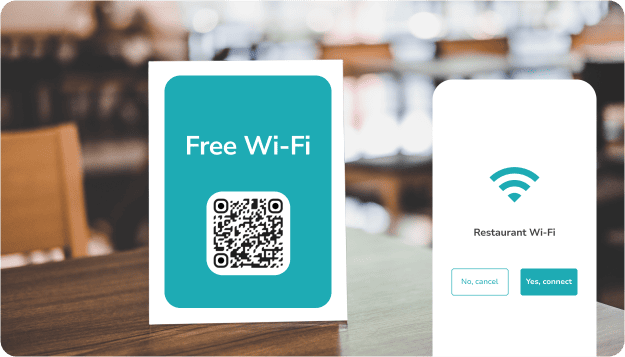
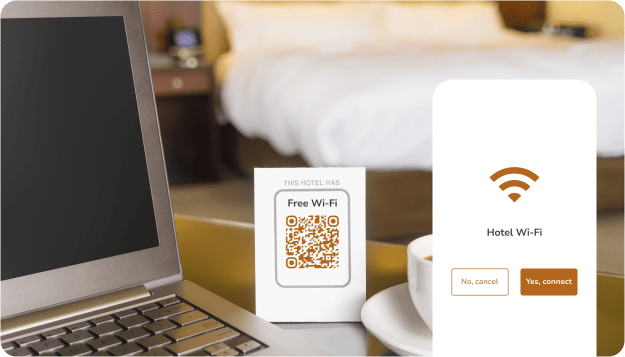
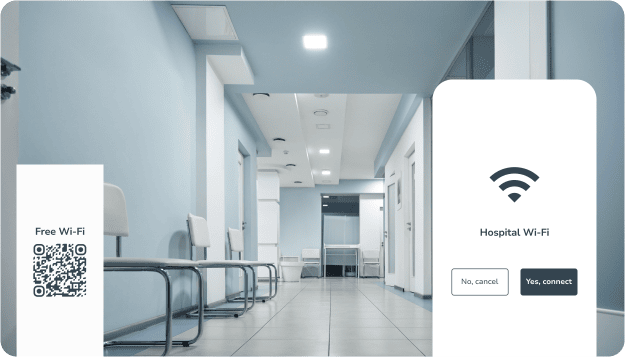
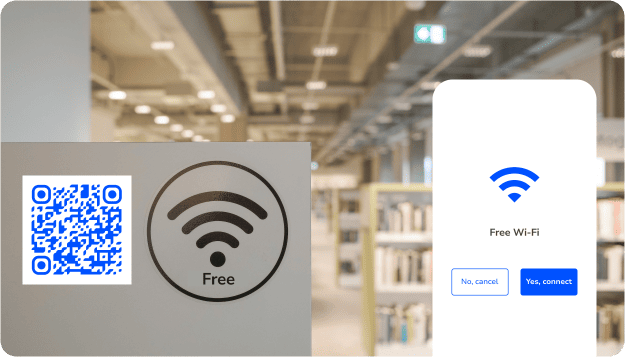
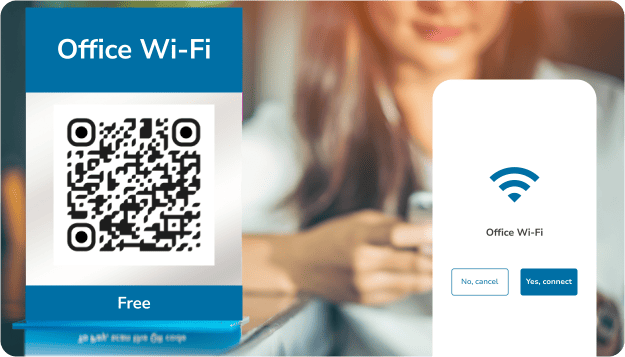
QRNow data insight: Simplify visitor check-ins and provide quick access to approved networks. This efficiency is why 50% of our WiFi QR code users are in Construction and Real Estate. Place codes in reception areas or on meeting room screens to offer clients a seamless, professional experience.
Based on aggregated and anonymized QRNow customer usage data collected in 2025.
How Wi-Fi QR Codes Simplify Operations and Improve Clients’ Experience
These digital connection tools help businesses improve workflow efficiency while giving guests faster, more reliable access to online services.
-

Reduce connection errors
Wi-Fi QR codes reduce mistakes caused by manual entry, such as misspellings, incorrect capitalization, or incorrect security details. This helps users connect more reliably from different smartphones or tablets.
-

Keep the experience consistent across locations
Businesses with several rooms, branches, counters, or service areas can offer the same connection process across all locations. Guests know what to expect, whether they are at reception, in a waiting area, or elsewhere.
-

Make network changes easier to manage
When Wi-Fi details change, teams can replace the customer-facing QR code rather than relying on staff to verbally explain new access details. This keeps network information easier to control and update.
-

Support accessibility for more users
A scannable Wi-Fi code can help visitors who may have difficulty reading small signs, handling manual setup, or navigating connection steps in another language. This creates a more inclusive and user-friendly access process.
Best Practices for Creating Effective Wi-Fi QR Codes
Make sure you know where to place your Wi-Fi code and what could make the connection process complicated.
Review the best and worst practices of creating and using Wi-Fi QR codes below.
-
 Verify network credentials before publishing
Check the SSID, password, and security type before printing or displaying your QR.
-
 Using outdated network details
Remove or replace old codes when the Wi-Fi name, password, or security settings change.
-
Place QR codes in high-intent areas
Display your Wi-Fi QR code at reception desks, tables, waiting areas, or on scannable posters where guests are likely to need internet access.
-
Placing codes in low-visibility spots
Avoid areas where users may not notice the code or are unlikely to need internet access.
-
Choose areas with a strong Wi-Fi signal
Place codes where the connection works well, so users can scan and join the network without delays.
-
Placing codes in signal dead zones
Avoid areas with poor connectivity, which can lead to connection failures and user frustration.
-
Use a dedicated guest network
Share access via a separate guest network rather than your internal business network, and follow basic QR code security practices.
-
Sharing your main private network
Do not expose internal networks to public users, as this can create security risks.
-
Add a clear instruction line
Use a short message like “Scan for Free Wi-Fi” so users immediately understand what the code is for.
-
Leaving users without context
Do not display the code without a clear label or instruction explaining its purpose.
-
Test the code before deployment
Scan the QR code on multiple devices to confirm it connects to the correct network and avoid common QR code scanning problems.
-
Assuming it works without testing
Skipping tests can lead to failed connections and a poor user experience
Frequently Asked Questions
-
It stores network details such as SSID, password, and encryption type in a scannable format. When users scan it using their smartphone camera, the device automatically detects the credentials and prompts them to join the network.
-
No, an additional app is not required in most cases. Modern smartphones can scan these codes directly using their built-in camera apps.
Our website generates compatible codes that work across standard mobile systems, so users can connect quickly without installing third-party applications or following complicated setup steps.
-
These codes can store the necessary network information required for a device to connect. This typically includes the:
- Network name
- Password
- Type of encryption used (such as WPA, WPA2, or WEP)
By scanning the QR code, devices can automatically retrieve these details and connect to the network without manual input, simplifying the connection process.
-
Yes, they are compatible with most modern iOS and Android devices. Smartphones running recent operating systems can scan and interpret the code using their native camera applications.
QRNow guarantees that generated codes follow standard formatting, allowing consistent performance across different devices and providing an easy, universal connection experience for users.
-
For the best Wi-Fi security, it is recommended to use WPA2 (Wi-Fi Protected Access 2) or the newer WPA3, if available.
These protocols offer robust encryption and security features, protecting your network from unauthorized access. WEP (Wired Equivalent Privacy) is considered outdated and vulnerable to attacks, while having no security (open network) exposes your network to potential fraud and data theft.
-
Yes, as long as you use basic network security. A QR code for your Wi-Fi only encodes your network details, so anyone who scans it can access the network. For businesses, it’s best to use a separate guest network with strong encryption.
-
Most Wi-Fi QR codes fail to connect if:
- The network name, password, or security type is incorrect
- Network settings changed after the QR code was generated
- The device does not support automatic Wi‑Fi joining
Always check your network details and make sure to test your Wi‑Fi QR code on multiple devices.
-
No, it does not expire because it is static and permanently encodes the network details at the time of creation. However, it will stop working correctly if the Wi-Fi name, password, or security settings are changed.
In such cases, a new code must be generated to reflect the updated credentials. QRNow allows users to easily create new versions whenever network configurations change, ensuring uninterrupted access for end users.
