Troubleshooting Common QR Code Scanning Issues
Scan failures can be categorized into two main types: physical issues and code errors.
Your code may not be working because of the way it’s printed or displayed, meaning users cannot scan at the proper angle or distance, or the camera focus or lighting is not adequate.
Alternatively, problems with the code itself may be behind the issue, such as broken links, outdated formatting, or design mistakes. 53% of users will leave a site if it takes longer than a few seconds to load, so it’s vital that your QR codes open correctly.
To solve your QR code problem most efficiently, identify which type of issue is affecting your QR before applying fixes.
Why Your QR Code Isn’t Working: Most Frequent Problems
Before replacing or reprinting anything, it’s critical to understand what’s preventing successful scans.
The first step is to identify the root cause of your QR problem and then apply the right solution. This helps you avoid repeated errors, reduce wasted materials, and create effective QR assets for your business.
-
Poor Lighting or Blurry Camera
Low light reduces camera contrast, and smudged lenses prevent autofocus. If you're sharing a QR code in a physical location, make sure it's displayed in a well-lit area, ideally with at least 100 lux of illumination.
Poor lighting can prevent smartphone cameras or scanners from properly reading the code, especially at evening events. To prevent these issues, Ttest on multiple cameras to maintain reliability across different devices. It’s also important to clean camera lenses regularly and hold the device at 10–20 cm (4–8 inches).
For best results:
- Test the QR code under different lighting conditions and on multiple devices to ensure consistent readability.
- Avoid placing QR codes directly under glare or behind reflective surfaces such as glass or plastic.
- Use bold, high-contrast colors (dark code on a light background) to make scanning easier in variable light.

-
Damaged or Distorted Code
Folding, scratches, or ink bleeding on printed materials distort patterns and ruin QR code integrity. Even a 2 mm tear affects readability. To avoid problems, use matte lamination or protective overlays on marketing materials, like flyers or posters. If printed copies degrade, replace them with paper quality and ink density that’s recommended for scanning.
To maintain performance over time:
- Avoid printing over folds or textured surfaces that can distort the code’s geometry.
- If you notice fading or scratches, replace printed copies immediately, rather than reprinting over the damaged surface.
- Verify that the final printed version maintains clean, sharp edges between dark and light areas.
Regular inspection and reprinting of discolored or damaged materials can help guarantee that your QR codes remain reliable and scannable for as long as possible.

-
Low Contrast Design
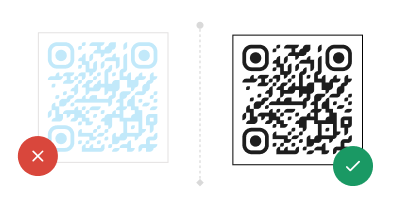
QR codes rely on a clear distinction between the dark and light areas of the pattern. Designs with pastel shades or light colors reduce scanner accuracy. Subtle gradients and logos in the frame can disrupt decoding.
It’s best to maintain 40% contrast between the foreground and background. A dark foreground with a light background works best. This is essential to consider when creating QRs with custom colors and logos, to ensure reliable detection across all major scanning apps and devices.
If you’re customizing the QR code’s color scheme or adding a logo, do the following to help you avoid QR code scanning problems:
- Keep the quiet zone (the white border around the QR code) free of any design elements.
- Test your custom colors on both light and dark screens to confirm that scanning apps can still recognize the code.
- Stay away from transparent overlays or patterned backgrounds that can distort the code’s edges.
-
QR Code Size Issues
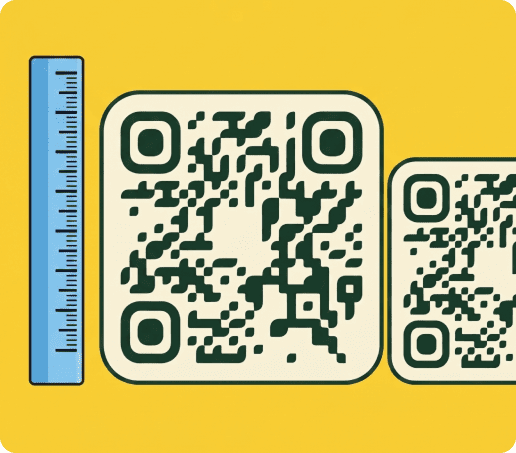
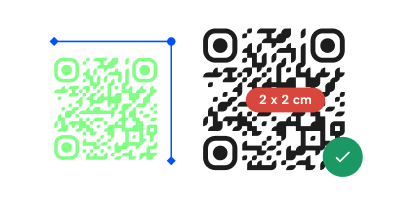
Codes that are too small increase scan time and cause misreads. The opposite is also true: codes that are too big cause problems with scan distance.
You’re recommended to print codes at a minimum of 2×2 cm. For billboards or large signage, size accordingly to maintain the same scanning ratio, based on ideal QR code size guidelines. Additional best practices include:
- Always test the code at the right distance before printing in bulk or installation.
- Make sure not to enlarge the quiet zone without adjusting the code’s border, as it can cause QR code scanning issues.
- Avoid placing small QR codes near surfaces where distortion can occur.
-
Expired Links or Broken URLs
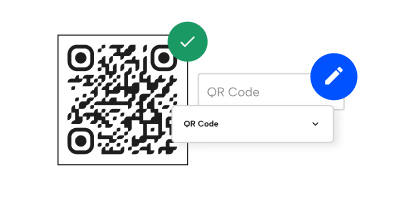
Even a perfectly designed QR code becomes useless if the link is broken or outdated. Users see error pages or no content if the URL is incorrect or the link has expired. Use dynamic URL codes to swap out content whenever you need to, so your QR stays up to date.
Some best practices to avoid these QR code scanning issues include:
- Test all live links regularly to confirm that pages load correctly across both iOS and Android devices.
- If you’re using a link shortener or redirect, ensure that the underlying service remains active and secure.
- Use QRNow’s dashboard to track scan activity to help you identify underperforming links and optimize content for better engagement.
- When updating URLs, verify that your landing pages are mobile-friendly and load within 3 seconds to help make sure your clients do not abandon scans.
-
Over-Crowded Pattern
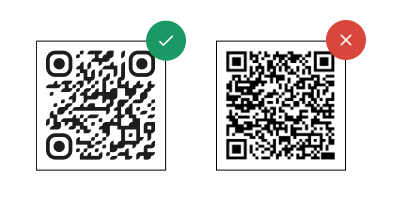
When a QR code contains a very long URL or large amounts of embedded text, the module pattern becomes very dense. This makes it much harder for scanners to decode.
In other words, the QR code was packed with too much data.
To fix this error:
- Use a dynamic code that links to external content rather than embedding everything directly in the code.
- Choose a lower “error-correction” level if you’re printing in difficult conditions, like placing a code in harsh weather or sunlight.
- If the printed code looks too “busy” or dense, shorten the URL or reduce the embedded content to make the pattern more readable.
-
Incorrect File Format or Low Image Resolution
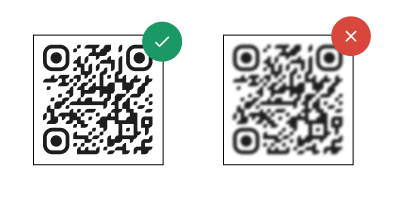
QR codes created in low-resolution raster formats like JPG or PNG can appear pixelated when enlarged. Also, exporting a QR code in a file format that compresses or distorts edges makes it difficult for devices to recognize the individual modules that form the code’s pattern.
To fix this, you can simply:
- Make sure to generate QR codes in vector formats (SVG, EPS, or PDF) for print materials.
- For digital use, choose high-resolution (at least 300 DPI) raster files with sharp edges and no color bleeding.
- Avoid resizing screenshots of QR codes or pasting them into images without maintaining their original quality.
Get started with your first QR code today
Enjoy full access to QRNow and create custom QR codes that look professional and on-brand. Sign up in seconds and start creating immediately.

How to Prevent QR Code Scanning Issues in the Future
Preventing QR scan errors starts with smart design, proper formatting, and regular maintenance.
A reliable QR code generator helps you avoid formatting errors and low-resolution outputs. QRNow allows you to create a range of codes in minutes that are compatible with all major scanners and platforms.
These tips also help to create functional codes and keep them effective over time.
-

1. Choose dynamic codes
They can be edited after printing, allowing you to update URLs, track scans, or correct mistakes without needing a reprint.
-
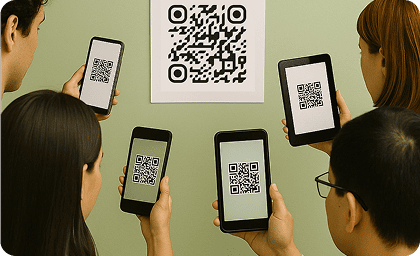
2. Test on multiple devices before publishing
This helps identify compatibility issues across operating systems, camera types, and scanning software.
-

3. Monitor scan performance and link health
Checking this frequently helps you spot broken URLs, expired redirects, low engagement, and user experience issues quickly.
-
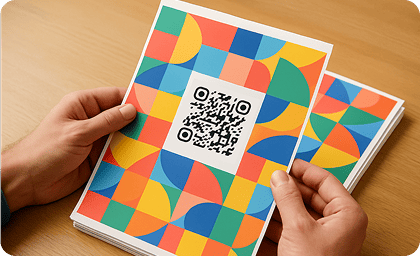
4. Print with durability in mind
Using lamination or protective finishes helps avoid scratches, tears, and ink bleeding that could distort your QR.
-
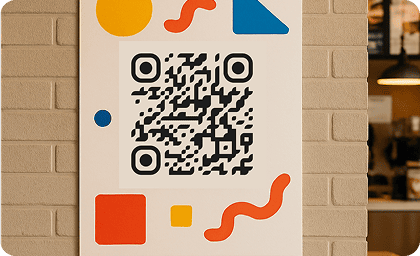
5. Maintain clear contrast and sizing
Stick to the standard scanning ratio and avoid placing codes on cluttered or low-visibility surfaces for fast scans.
Common Device Issues
Even with a well-designed QR code, scanning problems can still take place because of limitations in your client’s phone or scanning app. Smartphones with Android and iOS operating systems rely on a number of different parts to properly scan a code. When these patterns aren’t interpreted correctly, the scan may fail or return an error.
Some typical device-related problems include:
- Low camera quality or poor focus, especially in older or budget models.
- Dirty or scratched lenses that blur the QR pattern.
- Outdated camera apps or operating systems that lack QR scanning support.
- Slow processors struggling to decode high-density or large codes.
Which devices should you test QR codes on?
Built-in smartphone cameras have made QR scanning part of everyday phone use, and most users no longer rely on dedicated scanning apps.
However, not all devices behave the same way. Different operating systems, browsers, and camera technologies can affect how quickly and accurately a QR code is detected.
QRNow data insight: 58% of QR code scans on the QRNow platform come from Chrome, while 23.5% come from Mobile Safari. This highlights the importance of testing QR codes across both Android and iOS environments.
Based on aggregated and anonymized QRNow customer usage data collected in 2025.
At a minimum, you should test your QR codes on both Android and iPhone devices to ensure consistent performance across the most widely used platforms.
To fix these QR code scanning problems caused by their phones or apps, you can advise anyone who scans your apps to:
- Use clear, high-contrast designs and moderate error correction (M or Q).
- Avoid overly dense or complex codes; opt for shorter URLs or dynamic links
- Test scans on several phone models and camera apps.
- Remind users to clean their lenses and hold their phones steady.
By providing your clients with these tips, you can reduce failed scans.
FAQs
-
Low light and dirty camera lenses mostly cause QR scan failures. If a printed code is damaged, this can also make it impossible to scan. Internal QR problems, like expired links, might also cause issues.
-
QR code expiration is not an issue, as long as you ensure the file or URL you link to remains active. Static QRs will always link to the same place, as long as the site is operational.
Sometimes QR codes stop working because the printed code deteriorates, but this can be easily resolved by reprinting the code.
-
Scan your code with several devices, check the URL on desktop browsers, and inspect print quality for blur or distortion. With QRNow’s dynamic QRs, you can view scan counts in real time, so you can be confident that your code is working for your customers.
-
If your QR code is not scanning correctly, follow these tips:
- Test your code with multiple devices and scanning apps
- Check that the lighting is adequate where your code is displayed
- Reprint any damaged or distorted materials
- Update dynamic QRs to replace any broken links
If you need to create a new code:
- Make sure the contrast and design meet recommendations
- Follow tips on sizing, paper quality, and ink density when printing