How To Create a QR Code for a PowerPoint Presentation
With our QR code generator for PowerPoint slides, creating a QR code is quick, easy, and simple – you can try it with a 7-day trial with full access.
-
Choose what to share
You can link to many formats, including PDF files, website links, videos, and even contact cards (vCards)
-
Add your content
Open our generator and add your link or file. You can also include a CTA to give audiences a clear direction
-
Customize the design
Customize your QR code with colors and frames that match your branding
-
Download in high quality
Export your QR code in a high-resolution format to ensure it remains sharp and easy to scan on presentation slides
-
Test before adding to your PowerPoint
Scan your code across multiple devices to confirm it works correctly and goes to the correct content
Get started with your first QR code today
Enjoy full access to QRNow and create custom QR codes that look professional and on-brand. Sign up in seconds and start creating immediately.

How To Insert a QR Code in PowerPoint, Google Slides and Canva
Inserting a QR code in your presentation is simple and easy, no matter which platform you use.
Use our generator to create your code, save it as an image, and follow the table below to learn how to add it in PowerPoint, Google Slides, or Canva.
|
PowerPoint |
Google Slides |
Canva |
|---|---|---|
| Upload your pre-made QR code image directly into your PowerPoint via Insert > Picture. | In Google Slides, go to Insert > Image > Upload from computer and choose your pre-made QR code. | Open a design in Canva. Then, select Uploads and choose your QR code image. Drag it into position and resize it as needed |
Why Should You Add a QR Code in a PowerPoint Presentation?
QR codes help transform static presentations into engaging experiences. They make it easier to connect your audience with content, tools, and actions in real time.
These are just some of the benefits of adding a QR code to your presentation:
- Easy accessibility: Let your audience instantly open links, documents, or contact details without disrupting the flow of your presentation.
- Higher engagement: Adding well-made QR codes to your presentation will pique curiosity with scannable content like videos, demos, or interactive pages.
- Lead generation: Send attendees to sign-up forms or landing pages to capture interest during or immediately after your presentation.
- Real-time interaction: Add polls, surveys, or mini Q&A sessions to gather feedback while presenting.
- Trackable performance: Use dynamic QR codes to measure scans and understand which content resonates most with your audience.
Best Ways To Include QR Codes in Presentations
QR codes can be used at different points in your presentation to help guide your audience to taking the next step.
Here are some effective ways to use them to enhance your presentation and support your objectives:
Share extra resources and reading material
Add a QR code to your slides to give attendees instant access to reports, articles, PDFs, case studies, or other reference materials.
This is a great way to keep your presentation focused and your slides concise while still allowing your audience to explore the topic at their own pace later.
Collect audience feedback in real time
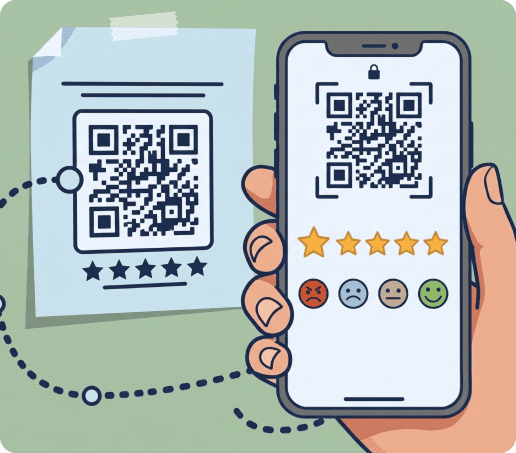
Direct your audience to quick feedback forms, satisfaction surveys, or rating pages during or immediately after your presentation. This helps you capture data while the experience is still fresh in their minds.
By using a feedback QR code, you can gather valuable insights to improve future presentations and measure audience response.
Launch live polls and Q&A sessions
QR codes are a great way to encourage active participation and keep your audience engaged, even during longer presentations or complex topics.
You can link your codes to interactive tools that allow attendees to vote, submit questions, or participate in quizzes. For example, during a product demo you can run a quick poll to gather opinions or collect questions to address at the end.
Make networking and contact sharing easier
Presentations and seminars are valuable opportunities to build connections. Instead of asking attendees to manually save your details, you can use a QR code to instantly share your contact information, LinkedIn profile, or digital business card.
With a vCard QR code, attendees can save your details in seconds, making follow-up faster and more likely after the session.
Link to product pages or sign-up forms
With a landing page QR code, you can guide your audience toward action while their interest is highest.
Place QRs after key slides to direct attendees to product pages, free trials, registration forms, or newsletter sign-up forms. This approach lets you capture leads instantly and move prospects further down your marketing funnel.
Best Practices for Using QR Codes on Presentation Slides
QR codes can be a powerful tool in your marketing strategy, but their impact depends heavily on how they’re implemented. Follow these best practices to use them successfully and get better results:
Make it large enough to scan quickly
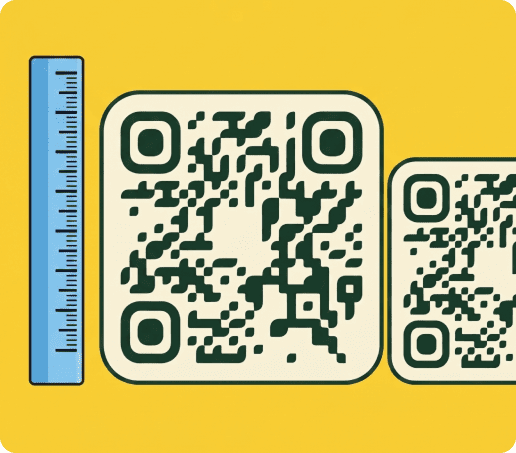
Your code should be large enough to scan from a distance, especially in larger rooms or conference settings. If it’s too small, attendees sitting further away may struggle to properly scan it.
To ensure consistent performance across devices, follow recommended sizing standards.
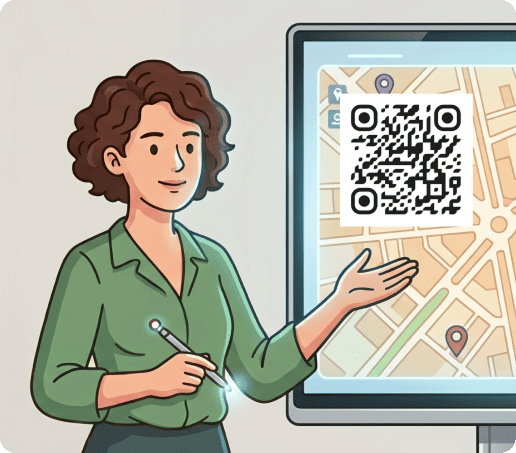
Place it where it supports the slide’s purpose
Avoid adding QR codes randomly on your slides. Instead, position them where they naturally support the content and guide your audience toward a specific action.
One example of this practice in action is placing it at the end of a pricing slide that directs attendees to a sign-up or free trial page.
Add a clear call to action
Don’t leave audience members guessing what they should do next! To-the-point and clear instructions help increase scan rates and let them know what to expect.
Use simple CTAs like “Scan to download the report” or “View case study here.” For more ideas, see our QR code CTA examples.
Test everything before presenting
Before presenting, test your QR code on multiple devices to ensure it scans quickly and leads to the correct destination. This helps prevent issues during your presentation.
Check performance on both iOS and Android devices, and test from different distances to ensure all attendees can access your content without difficulty.
Frequently Asked Questions
-
Yes, if you’re using a dynamic solution, you can update the destination link at any time without changing the QR code in your presentation. This is especially useful if you need to fix a mistake or update your content after your slides are finalized.
-
Not directly, since QR codes cannot open a specific slide within a local PowerPoint file. However, you can upload your presentation to a platform like Google Slides or PowerPoint Online and generate a link to a specific slide or section.
-
Your QR code should be large enough to scan easily from a distance, especially in larger rooms. A code that is too small may not scan reliably, which can lead to reduced engagement and frustrated attendees.
As a general rule, make sure it is clearly visible on the screen and test it from the back of the room. Larger is usually better, as long as it does not distract from your main content.
-
Yes, if you use a dynamic QR code, you can track how many people scanned it, when they scanned it, their location, and operating system. This helps you measure engagement and understand audience behavior.
-
Your QR code should remain visible long enough for attendees to notice it, open their camera, and scan it comfortably. Rushing past it too quickly can reduce scan rates.
In most cases, leaving it on screen for at least 30 seconds is recommended, especially if your audience needs time to react and engage.
-
Yes, they can still be effective in virtual presentations, especially when attendees are watching on a laptop or desktop. They can scan the code using their phone without interrupting the session.